HP’s M126 plus LaserJet page identifies input tray, toner-cartridge area, output bin and document feeder as separate jam locations. Its control panel may show an E0 message with a location-specific prompt. Use the listed model-family procedure and avoid pulling paper against the feed direction or tearing scraps into the path.
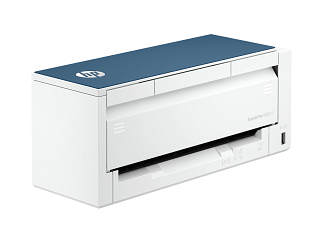
HP 8Q4W2A is recorded as Scanners. Start with a locally saved scan and distinguish document feeding, image capture and the application’s export or network destination. If a line repeats in the same position, inspect only the glass and rollers the owner manual makes accessible. Where both feeder and flatbed paths exist, scan the same clean original through each to localize the problem. Brother’s ADS-1500W cleaning example explains how contamination on a glass strip can create a vertical scan line; use this model’s own access and cleaning instructions. Scanner identification does not establish a print engine or a need for ink or toner.
Compare printer-generated tests, scan/copy paths, and computer jobs before arranging internal service.
Owner guide: Troubleshooting & repair
Category & symptom guidance
Troubleshooting & repair
3 minute read · Shared guidance for printers & imaging
Locate the failed part of the workflow
A printer fault can occur in the job, connection, paper path, print engine, scanner, or supplies. Record whether the printer accepts a job, displays a message, feeds paper, produces a page, or scans. Print a printer-generated test or status page when available. If that page is clean but a computer document fails, focus on the driver, app, queue, or job settings. If the printer’s own pattern is poor, use the print-engine diagnostic path.
For multifunction devices, compare printing, copying, and scanning separately. A copy uses the scanner and print engine but bypasses the computer driver.
Use model-specific checks and stop before service work
Follow the owner manual for paper jams, cartridge or toner changes, alignment, and cleaning. Do not pull paper against the feed direction or reach into a hot fuser area. Avoid touching the printhead, drum, transfer belt, or electrical contacts unless the manual specifies an owner task.
A printer can contain moving parts, hot surfaces, and fine toner powder. If the issue involves a damaged cord, smoke, liquid, broken gear, repeated grinding, or internal assembly, stop use and arrange service rather than opening the cabinet.
Separate print defects from computer transmission
Run the printer’s own diagnostic page. If its text and patterns are normal, compare a second document and application, then check queue, driver, paper settings, color mode, and connection. If the built-in test has streaks, missing colors, or repeating marks, preserve it and follow the relevant inkjet or laser section in the manual.
Change one setting or component at a time. Keep the old values and supply codes. Reinstalling the driver and changing paper at the same time obscures whether the result came from software or the physical print path.
Prepare a useful service request
Share the complete model code, serial, operating system, connection type, exact panel message, printer-generated test, and scan/copy results. Include the supply codes and paper type. For a scanner issue, state whether it happens on the glass, ADF, or both. For a paper-feed issue, describe which tray and where the sheet stops.
Ask for a diagnosis and itemized estimate before authorizing internal work. For a device under warranty, contact the manufacturer before third-party disassembly. Save the work order and replaced part numbers.
Keep the device safe while gathering evidence
Do not cycle power repeatedly to capture a fault. Stop if paper is trapped near a hot fuser, ink leaks, toner spills, or moving parts grind. Photograph the outer condition and panel message, then disconnect power if a hazard requires it. Service staff can assess the printer more safely when a jam or spill has not been forced deeper into the mechanism.
Preserve a failed page and the supply label
Place a note beside a bad page naming the model, supply code, paper, and test source. Photograph the label of a suspect consumable before returning it. Do not write directly on the printed test pattern or rub toner and ink marks. A clean record helps the manufacturer compare output with its reference chart and determine whether the component is under a separate supply warranty.
General background sources
These sources support the shared guide. Exact model specifications and matched family procedures have their own sources above.