LaserJet toner quality checks start with paper and cartridge
HP’s cited LaserJet M213-M224 support guide links smears, fading and scattered toner to media choice, print settings and cartridge condition. It warns against inkjet-only glossy paper in LaserJet models. Use the printer’s own guide for any cartridge cleaning tool; the described M213-M224 workflow is not universal across LaserJet generations.
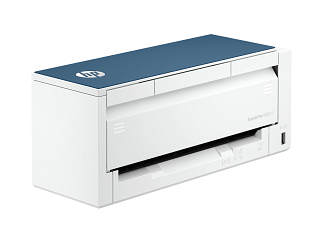
HP 8Q4W2A is recorded as Scanners. Start with a locally saved scan and distinguish document feeding, image capture and the application’s export or network destination. If a line repeats in the same position, inspect only the glass and rollers the owner manual makes accessible. Where both feeder and flatbed paths exist, scan the same clean original through each to localize the problem. Brother’s ADS-1500W cleaning example explains how contamination on a glass strip can create a vertical scan line; use this model’s own access and cleaning instructions. Scanner identification does not establish a print engine or a need for ink or toner.
HP 8Q4W2A lists automatic duplex output as Yes. Compare the driver’s two-sided option, paper size and media type with the supported paper path. A printer’s output duplex entry does not establish two-sided scanning.
Use the printer’s own test page, then check media and model-specific inkjet or laser causes.
Owner guide: Poor performance
Category & symptom guidance
Poor performance
3 minute read · Shared guidance for printers & imaging
Use the printer’s own quality pattern
Print a manufacturer-provided quality, nozzle, or configuration page from the control panel. That test removes the computer application and driver from the print path. Keep the page and note whether defects are missing lines, banding, streaks, repeated spots, faded areas, or incorrect alignment. These patterns point to different checks and should not all be described as “bad print quality.”
For an inkjet, use the nozzle-check pattern specified for the model. For a laser unit, compare a configuration or quality sheet with the manufacturer’s example for that product family.
Check paper, media setting, and tray
Confirm paper is clean, dry, flat, and supported by the selected tray. Match media type and size in the printer and driver. Photo paper, labels, and envelopes may require a separate path and setting. A mismatch can produce smears, wrong color, poor adhesion, or jams even when the print engine is working.
Do not print on damp or curled paper. If one tray produces defects and another does not, note that result and inspect guides and rollers only as the manual allows.
Inkjet output needs its own diagnostic sequence
If an inkjet’s nozzle pattern is incomplete, follow the exact manual’s cleaning sequence and wait interval. Compare each new pattern with the prior one. Cleaning uses ink and repeated cycles can fill a maintenance box or reduce supply life. Do not exceed the manufacturer’s limit or manually wipe the printhead unless instructed. Check ink level and confirm any tank vent or cartridge installation steps are complete.
If the pattern is complete but a document looks wrong, inspect application color settings, paper profile, and driver mode instead of running more cleaning cycles.
Laser marks and fading need a different check
For laser output, note whether spots repeat at regular intervals, whether one color or all colors are affected, and whether the page is faded or smudged. Use the model’s guide to identify which toner, drum, belt, or fuser check is appropriate. Do not touch imaging surfaces or open the hot fuser section. Some units separate toner from the drum; replace only the component the manual or service diagnosis identifies.
If the printer’s own pattern is normal but one file is poor, examine the source image, font embedding, and driver settings.
Preserve the first bad test page
Keep the first printer-generated page that shows the defect. Note date, paper type, tray, quality mode, supply state, and whether the pattern came from the panel or computer. For a repeating mark, describe spacing without touching internal components. For an inkjet, keep the nozzle pattern; for laser, save the quality page. Use the model’s official guide before deciding which part may be responsible.
Check alignment only when the test calls for it
If text is doubled, skewed, or color edges do not align, the model may offer an alignment procedure. Use it only after the relevant test page indicates that step and use plain paper when required. Alignment is different from nozzle cleaning or replacing toner. Keep the alignment sheet and resulting status so a later support request can show whether the adjustment changed output.
General background sources
These sources support the shared guide. Exact model specifications and matched family procedures have their own sources above.