Owner help
Help with your K10617
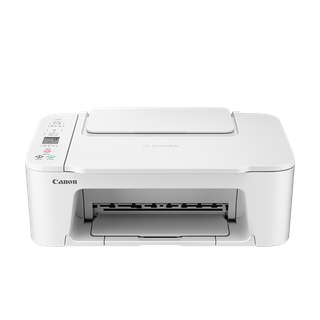
Canon’s partner record identifies K10617 as TS3720 and lists TS3722, TS3725 and TS3729 as additional names. Canon’s TS3700 manual explicitly includes those models and documents a button/LCD maintenance menu plus FINE cartridges.
Product type Multifunction Devices (MFD) 1 detailed family article 9 short family notes 39 detailed owner guides
Detailed articles use sources for the named brand and product family. Short notes add family details to shared guidance. Owner guides cover the product category and recorded design, with this model’s measurements and brand details shown separately. Exact controls and part fitment require a matching manufacturer source.
Product & documents Detailed owner guide Use the physical model code to find the matching manual, driver, consumables, and support page.
Read the product label, not the cartridge door Identify the print technology before buying supplies Separate printer model from network and computer identity Read model number & identification Detailed owner guide Compare print technology, paper handling, scan capacity, connectivity, speed conditions, and official supplies.
Compare speed and quality claims by test conditions Check paper and scanner capacity Confirm connection and operating-system features Read specifications Detailed owner guide Find the exact manual for supplies, paper paths, cleaning limits, drivers, and owner diagnostics.
Find documentation by complete model number Use the correct document for the job Find consumables and maintenance limits Read manuals & documents Installation & connections Detailed owner guide Measure the printer with trays and scanner lids open, then allow space for paper, ventilation, and service.
Measure the complete printer footprint Plan space for paper and output Check weight and service access Read dimensions & fit Detailed owner guide Install the model-specific supplies, load matching media, connect through one path, and test printing and scanning.
Choose a stable, ventilated location Remove shipping materials in the manual’s order Load the correct media and connect the printer Read installation planning Detailed owner guide Use the rated cord and outlet, keep adapters ventilated, and account for printer warm-up loads.
Use the rated power connection Keep adapters and cords ventilated Separate network power from signal problems Read electrical requirements Detailed owner guide Follow the model’s ink, toner, drum, and carriage transport instructions before packing or tilting the printer.
Prepare the print mechanism for transport Pack supplies and accessories safely Carry and set down the printer evenly Read delivery & moving Controls & operation Detailed owner guide Complete the official setup sequence, align or initialize only as prompted, and test print and scan separately.
Prepare the printer and supplies Load paper that matches the job Connect through one route first Read first use & setup Detailed owner guide + family notes Canon lists TS3700 menu entries such as Nozzle Check, Cleaning, Deep Cleaning, roller cleaning, bottom-plate cleaning and Wi-Fi pairing. The numeric menu and Black/Color confirmation buttons are specific to this family; do not use the...
Match media settings to paper Choose quality and color settings intentionally Configure duplex and tray behavior Read controls & settings Detailed owner guide Choose the printer, network, queue, or app reset that matches the fault and preserve settings before clearing them.
Choose which part of the printer needs resetting Record settings before a network reset Use factory defaults only for a printer-side fault Read restart & reset Detailed owner guide + family notes Canon’s Windows driver guide exposes Nozzle Check and Cleaning through the IJ Printer Assistant Tool. If the pattern is normal, exit rather than running a clean; if sections are absent, use the maintenance sequence in the TS3700 manual.
Choose software for the exact printer and operating system Separate printer firmware from computer drivers Check app and operating-system support Read software, drivers & firmware Care & consumables Detailed owner guide + family notes Canon says power off and unplug before cleaning the TS3700 exterior; use a soft dry cloth and avoid thinners, benzine, acetone and rough paper towels. It warns that fibers or cleaner can cause damage or printhead blockage.
Clean the outside and scanner glass gently Clean the automatic document feeder path Inkjet maintenance is a separate procedure Read cleaning & odor Detailed family article Canon’s TS3700 manual includes TS3720, TS3722, TS3725 and TS3729 and uses a compact operation panel rather than the touchscreen found on the TR8620 family. Its maintenance menu is exposed through numbered Setup functions, and its...
Establish the family and the button-menu behavior Check cartridge state before cleaning Print a nozzle check from the supported utility Read preventive maintenance Detailed owner guide + family notes Canon’s TS3700 ink page lists the family’s FINE cartridge numbers. Verify the exact black/color codes and regional availability there; these are replaceable cartridges, unlike the refillable tanks listed for G-series MegaTank devices.
Identify each supply the model actually uses Ink cartridges and refill tanks have different supply practices Laser supplies can include several components Read filters & consumables Detailed owner guide Match the panel prompt to the exact part code and use the model-specific replacement sequence.
Read the prompt and identify the exact item Prepare the correct replacement before opening the printer Inkjet replacement depends on cartridge or tank design Read consumable replacement Detailed owner guide Follow the exact transport and storage instructions for the printer’s ink, tank, toner, drum, and carriage design.
Use the product’s transport procedure Prevent ink and toner damage Choose a dry storage location Read storage & seasonal care Troubleshooting Detailed owner guide Compare printer-generated tests, scan/copy paths, and computer jobs before arranging internal service.
Locate the failed part of the workflow Use model-specific checks and stop before service work Separate print defects from computer transmission Read troubleshooting & repair Detailed owner guide + family notes Canon’s PIXMA maintenance workflow uses the nozzle-check pattern to decide whether to clean. If the printed pattern is complete but the job still fails, investigate connection, queue or paper settings rather than spending ink on...
Check the queue and one short job Print from the control panel Verify device, tray, and driver settings Read not printing Detailed owner guide + family notes Canon’s TS3700 manual includes a support-code list and model-specific paper and ink troubleshooting. Record the complete code and use its corresponding entry rather than interpreting a flashing light from a different PIXMA model.
Capture the full message and timing Match the message to the source that generated it Follow only the documented owner action Read error codes & indicators Detailed owner guide Locate when the sound occurs, inspect paper loading, and stop for grinding, heat, odor, or leakage.
Identify when the noise occurs Check paper and external vibration Separate inkjet carriage sound from laser transport Read noise & vibration Detailed owner guide Check the approved cord, outlet, panel, and power button without opening the printer.
Check the outlet and printer power cord Use the printer’s own power control Check power interruptions safely Read no power & starting Detailed owner guide + family notes Canon directs TS3700 owners to print a nozzle-check pattern when a color is missing or output is streaked. On a computer, its IJ Printer Assistant Tool prints the pattern on plain paper in the rear tray; clean only if the pattern is defective.
Use the printer’s own quality pattern Check paper, media setting, and tray Inkjet output needs its own diagnostic sequence Read poor performance Parts & accessories Detailed owner guide + family notes Canon product support and manuals are model-specific; cataloged Canon inkjet devices include distinct technologies and configurations. Check the exact manual for cartridge/tank replacement procedure and compatible ink before buying...
Match the supply or part to exact model code Understand what each consumable does Check return terms and storage Read parts & components Detailed owner guide Confirm the diagnosis, owner-service scope, exact part, and required test before replacing printer components.
Confirm the part is meant for owner replacement Verify diagnosis before ordering Prepare a safe replacement area Read component replacement planning Detailed owner guide Match media, cables, trays, supplies, and power accessories to the exact printer model.
Choose paper and media the printer supports Match cables and adapters to the connection Select replacement trays and document accessories carefully Read accessories & installation kits Detailed owner guide Check driver, scanner, mobile, network, and regional supply support independently.
Check the operating system and driver Verify mobile and network printing features Check scan support separately from print support Read compatibility & substitutions Detailed owner guide Use paper-path, port, and parts diagrams for the exact model and reserve internal schematics for technicians.
Use the paper-path illustration for jams Use connection diagrams to distinguish ports Treat parts diagrams as identification aids Read diagrams & wiring references Ownership decisions Detailed owner guide Request an itemized diagnosis, part list, and post-repair test before approving printer service.
Ask what diagnosis includes Get an itemized estimate and parts list Compare repair with continued supply costs Read repair cost & service quotes Detailed owner guide + family notes Canon’s print-quality workflows use a nozzle-check result to decide whether cleaning is justified. Keep the pattern, the exact retail name and the maintenance operations already tried with a service request. Repeated deep cleaning...
Compare the printer’s workload with the replacement Calculate the full ownership cost Check software and supply availability Read repair or replace? Detailed owner guide Compare like ENERGY STAR printer measurement types and use duplex and sleep features appropriately.
Compare the correct ENERGY STAR measurement Use duplex and page layout to reduce paper Use sleep and auto-off settings with workload in mind Read energy, water & efficiency Detailed owner guide Estimate printer ownership from energy, official supply yields, paper, maintenance, and page mix.
Start with model-specific energy data Estimate supplies from your document mix Include paper, maintenance, and idle use Read running cost calculator Detailed owner guide Check the written terms and serial status for the exact printer model, region, supplies, and service route.
Find the terms for the exact printer and region Separate printer hardware from supplies Contact support before paid disassembly Read warranty & official support Detailed owner guide Search official safety notices by model and serial, then follow the manufacturer’s stated remedy.
Search official recall sources using exact model details Follow the notice instead of ordinary troubleshooting Handle ink and toner safely during a remedy Read recalls & safety notices Detailed owner guide Use dated official product, firmware, driver, and supply records to trace what is supported for the exact model.
Use documents tied to the full model code Track operating-system and app support separately Distinguish supply generations and regional variants Read model age & history Detailed owner guide Separate sourced printer specifications from measured output, speed, reliability, and supply-cost claims.
Label specification-based reviews honestly Translate specifications into common jobs Discuss consumables without invented running costs Read specification review Detailed owner guide Compare printer technology, workload, paper/scanning features, official supplies, software, and total operating assumptions.
Compare the exact printer models Match to print and scan workload Compare supply cost with the same assumptions Read compare similar models Detailed owner guide Match the new printer to required print/scan functions, software, supplies, network, and data migration.
Map the current printer’s essential functions Confirm the host and software fit Compare supply and service availability Read replacement appliances & fit Detailed owner guide Compare exact model and bundle, delivered cost, supplies, seller, and return terms.
Compare complete model and bundle contents Calculate delivered and ready-to-use cost Read return and consumable terms Read price & availability Detailed owner guide Choose service for the exact print technology, confirm data handling and fees, and retain test results.
Choose a service provider for the printer design Agree on fees and data handling Package the machine and accessories Read professional service Detailed owner guide Check local, manufacturer, and cartridge programs and clear stored jobs and destinations before handoff.
Reuse a working printer when safe Find a collection route for the printer and supplies Protect the machine during transport Read recycling & disposal Topics that need a feature match Some topics apply to other categories or need a feature that this record has not established.
Water supply & connections Outside this product category.
Drainage & water removal Outside this product category.
Venting & exhaust Outside this product category.
Cycles & programs Outside this product category.
Temperature settings Outside this product category.
Control lock & access A control-lock feature has not been established.
Special modes A special operating mode has not been established.
Wi-Fi & connectivity Connected capability is absent or has not been established.
Water quality & scale Outside this product category.
Leaks, moisture & condensation Outside this product category.