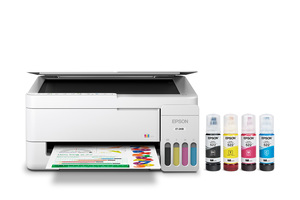
Guidance for Epson printers & imaging. Check the feature and control descriptions against your model.
Specifications & model details
C11CL62202: model-specific checks
Use this model’s marking technology
Epson C11CL62202 is recorded as Ink Jet (IJ). For missing colors or broken lines, start with an internal print-quality/nozzle-check page before choosing the manufacturer’s cleaning level. Check the actual cartridge or tank arrangement before buying ink; a marking-technology label does not specify the refill system.
Epson C11CL62202 lists automatic duplex output as Yes. Compare the driver’s two-sided option, paper size and media type with the supported paper path. A printer’s output duplex entry does not establish two-sided scanning.
Check queue state, printer-generated output, job settings, and driver to locate why printing fails.
Owner guide: Not Printing
Category & symptom guidance
Not Printing
3 minute read · Shared guidance for printers & imaging
Check the queue and one short job
Open the operating system’s print queue and inspect whether the job is paused, held, waiting for paper, or blocked behind another job. Cancel one test job through normal controls, then send a one-page plain-text document. A large PDF or photo can take time to render and can make the queue seem frozen. Check the printer panel for a paper-size, cover, or supply prompt.
If the printer is shared, do not clear all users’ jobs. Record the job state and error before changing settings.
Print from the control panel
Use the model’s control-panel option to print a configuration, status, or quality page. This bypasses the computer, application, and queue. If the page prints correctly, the print engine worked under that condition; investigate the selected queue, driver, host, or connection. If it fails, follow the model’s paper, supply, or error instructions.
A multifunction printer’s panel copy is another useful check. If copy and internal page work but a computer job does not, do not begin printhead cleaning or replace toner.
Verify device, tray, and driver settings
Confirm the application selected the correct physical printer rather than an old queue or virtual PDF device. Check paper size, tray, media type, duplex, color, page range, and copies. A printer can wait for the size selected in the driver even when another size is loaded. Try a second application with one plain page to separate document rendering from printer communication.
Download software from the exact-model support page. A generic driver may omit duplex, tray selection, color, or status functions. Remove only confirmed obsolete duplicate queues.
Follow the paper or quality branch
If paper begins feeding but output is blank, faded, or streaked, keep the page and use the quality guide. For an inkjet, follow the model’s nozzle-check order; for a laser printer, use its own quality page and supply instructions. If paper jams, use the owner manual’s access doors and pull direction. Never force rollers or reach into a hot fuser.
If the panel reports a code, record it exactly instead of repeatedly resending the job.
Report a reproducible failure
Share the model, OS, driver version, app, connection, queue name, panel error, and internal-page result. State whether a job stays queued, disappears, or prints partially. Include a small non-sensitive sample only if the manufacturer requests it. For managed printers, ask IT before changing queue or network settings.
Save Wi-Fi and scan destinations before a network reset. A print-only symptom does not justify erasing the whole printer setup.
Test one job without specialized settings
Use a short text file on plain paper with one-sided, black printing. This removes photo settings, duplex, tray switching, and large-file rendering from the first test. If it works, restore the original document’s options one by one. If it fails, the internal page and queue state determine whether to check printer-side handling or the computer. Keep the successful test page as a baseline.
General background sources
These sources support the shared guide. Exact model specifications and matched family procedures have their own sources above.