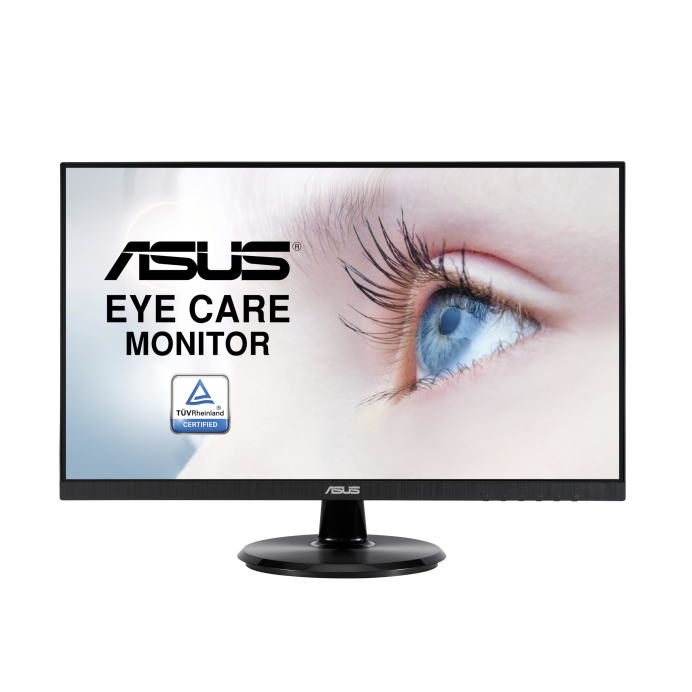
Potential replacements. Compatibility is not guaranteed. Confirm the complete model, suffix, serial/version, diagram position and current part number with the seller or manufacturer before ordering. Seller links open their listings for current price, stock and returns.
We do not have a current, reviewed individual part suggestion for this model. Use the official lookup below with the full appliance label.
How these suggestions are reviewed · Seller links are unpaid. Specs & Parts does not sell these parts or guarantee fit, performance, or a repair outcome.
ASUS Monitor monitors
Specifications for VA27DCP with owner checks for this product design. Use the matching manual for control sequences and replacement parts.
Specifications & model details
VA27DCP: model-specific checks
The company named in this model’s archive
ASUS VA27DCP is associated with ASUSTeK COMPUTER INC. in the original regulatory record. Use both the retail brand and this company name when researching an older manual, parts listing, or recall notice. This historical listing identifies the source relationship; the complete model and serial still determine a replacement part or service arrangement.
ASUS VA27DCP lists 1920 x 1080 pixels native resolution. Use that resolution as the first image-quality reference, then verify a supported refresh rate and the selected input. A lower source resolution may be scaled; a blank image may instead come from an unsupported timing or an input selection. The recorded pixel count alone does not establish HDMI bandwidth or gaming features.
ASUS VA27DCP lists HDMI,USB. Choose the physical input in use and select that same input on the display. Test with a known-working source and cable before changing drivers or buying an adapter. Where USB-C appears, check video, data and power capabilities separately.
ASUS VA27DCP lists a maximum power-delivery value of 65 W. Compare the computer’s charging requirement and the cable’s rating with that limit. A laptop may need its own charger under heavy load even while video and USB data work; the power-delivery figure does not by itself establish video over USB-C.
Check video timing, USB-C data and power, docks, KVMs, and software across the complete setup.
Owner guide: Compatibility & substitutions
Category & symptom guidance
Compatibility & substitutions
3 minute read · Shared guidance for monitors & displays
Match the monitor to the computer output
Check the graphics output on the exact computer model and compare it with the monitor’s input requirements. A USB-C connector may support charging and data without video; verify DisplayPort Alt Mode or the specified display protocol in the host documentation. Confirm supported resolution and refresh rate for the selected port. The monitor’s specifications do not override limits imposed by the computer graphics hardware.
If using an adapter, verify its input, output, direction, and mode support. HDMI-to-DisplayPort and DisplayPort-to-HDMI adapters are not always interchangeable. Use a manufacturer-supported conversion for the exact signal path.
Include docks and KVMs in the compatibility chain
Every device between the computer and monitor must pass the selected video timing. A dock or KVM can limit resolution, refresh rate, HDR, variable refresh, or the number of active displays. Compare its manual with the monitor and host specifications. Test direct connection to isolate an intermediate device before concluding that the monitor is incompatible.
If a dock can drive several monitors, available bandwidth may be shared among outputs. A mode that works with one display may disappear when another is connected. Record which screens are active when testing.
Check power and USB hub requirements separately
USB-C video, data hub, Ethernet, and laptop charging are separate functions. Check whether the monitor provides the necessary power delivery and whether the host accepts it. A screen can display video while a laptop battery drains because the monitor supplies less power than the computer needs. A separate upstream USB cable may be required for hub ports even when video uses HDMI.
For a monitor with built-in KVM, verify the supported USB upstream paths and the switching behavior in its manual. Do not expect the KVM to switch video automatically unless the product documentation says it does.
Verify software and feature support by version
Operating-system support, graphics-driver capability, and monitor firmware can affect advanced features. Check the manufacturers’ supported versions for HDR, adaptive sync, USB hub management, or color utilities. A feature listed on a product family page may not be available in every regional or size variant.
Before purchase, confirm the exact use case with the seller or manufacturer: which computer, port, cable, resolution, refresh rate, and accessory. Save the answer. This avoids relying on a broad “compatible with USB-C” statement that does not specify video or charging.
Test the complete workstation before purchase
If possible, confirm the intended setup with the seller using the exact host and dock model. A useful compatibility question names the video mode, number of displays, refresh rate, USB hub, and laptop charging target. For example, request confirmation for one laptop model connected through a specific dock to two named monitor models. Save the response and test within the return period. General statements such as “USB-C ready” do not establish the function of every port or cable.
Verify mode limits before keeping the setup
Once connected, open the operating system’s advanced display page and confirm the active resolution and refresh rate. A monitor’s advertised maximum may require a particular input, color depth, or compression mode. Compare the active setting with the manual’s timing table. If a dock reduces the rate, decide whether the dock or direct connection better fits the workstation before buying a replacement display.
General background sources
These sources support the shared guide. Exact model specifications and matched family procedures have their own sources above.