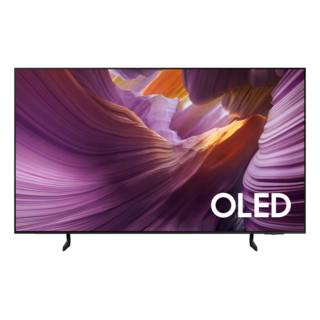
Guidance for Samsung televisions. Check the feature and control descriptions against your model.
Specifications & model details
QN55S84FAF: model-specific checks
Keep the recorded resolution direction
Samsung QN55S84FAF lists 2160 pixels native vertical resolution. That is the height in pixels. Compare the source device’s output and the display’s supported input timings; the vertical figure alone does not establish horizontal pixels, refresh rate, HDR or an HDMI version.
Samsung QN55S84FAF lists Universal Serial Bus (USB),Other,RS-232,HDMI. Choose the physical input in use and select that same input on the display. Test with a known-working source and cable before changing drivers or buying an adapter. Where USB-C appears, check video, data and power capabilities separately.
Connect one source at a time, select the matching input, and confirm a stable picture and sound before arranging cables.
Owner guide: First use & setup
Category & symptom guidance
First use & setup
3 minute read · Shared guidance for televisions
Choose the intended source and region
During first setup, select the region and time settings that match the television’s use location. Choose antenna, cable, satellite box, or streaming device according to what is physically connected. A channel scan will not create channels without a compatible signal feed. Select the matching external input when using a box; the TV’s HDMI label and the box’s cable must refer to the same connection. Don’t tune or rename every port before confirming a picture from the first device.
Set up the picture in a controlled room
Start with the manufacturer’s standard picture mode, then adjust only for room light and viewing preference. If comparing screens, use the same source, content, and brightness conditions; store display-store demo modes may exaggerate saturation or motion. Confirm that overscan, aspect ratio, or zoom has not cropped subtitles or channel information. High dynamic range and motion processing depend on source format and TV settings. Change one option at a time so a dark, washed-out, or overly smooth image can be traced to a specific setting.
Connect audio before enabling features
Decide whether sound should play through TV speakers or an external soundbar/receiver. Use the port identified for optical or ARC/eARC in the rear-panel diagram, and set the audio output only after the physical link is connected. When no sound occurs, test TV speakers before changing the source’s format. Bluetooth headphones and external receivers can redirect audio away from the speakers. Keep HDMI-CEC or automatic device control disabled until basic picture and sound work, then enable it if the connected devices support it.
Complete network setup deliberately
Join the home network only after deciding whether the TV needs streaming, software updates, or a phone remote. Confirm that the network name and password are correct and that the TV reports connection, not merely that the phone does. Some setup paths request an account or permissions; read each prompt before accepting. Test one built-in app and the remote after setup. If those fail while antenna or HDMI works, troubleshoot Wi-Fi and account access separately rather than resetting the picture or changing cables.
Preserve a useful setup baseline
If first-run setup cannot complete, distinguish a network/account problem from a picture problem. A TV can display setup screens while internet access or service sign-in fails. Continue with a local HDMI source or antenna only if the TV provides that option, and verify its picture separately. If the remote cannot navigate, check batteries and pairing guidance for that remote model. Avoid accepting a factory reset prompt until you understand which prior choices and downloaded apps will be erased. Once network setup succeeds, test a source that does not depend on the router. That confirms the tuner or external input remains usable if a later app or connection problem appears. Keep the original packaging and setup paperwork until all connected sources and basic TV controls have been checked.
General background sources
These sources support the shared guide. Exact model specifications and matched family procedures have their own sources above.