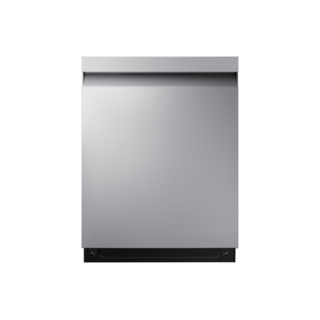
The DW80CG5420SR/AA product page lists Wi-Fi, and Samsung’s family chart identifies Smart Control on applicable DW80CG panels. Record whether the appliance’s local controls work and whether the app reports the dishwasher online before troubleshooting the network. Follow Samsung’s exact setup instructions for account, network, and pairing. Wi-Fi availability does not mean every remote function or notification works in every region or network configuration.
Use DW80CG5420SR/AA in the Samsung support request. The suffix is part of the source identity; it should remain visible when selecting documents, software or parts. A matching base code alone does not establish all regional and production details.
Connectivity is recorded for this model
Samsung DW80CG5420SR/AA lists connected capability as Yes. Match the manufacturer’s supported app and onboarding instructions to this product and market. Do not perform a factory reset simply to retry network pairing.
Confirm that the exact dishwasher supports connected features, then use its manufacturer app and the model’s pairing instructions. Separate a network problem from a wash-control problem.
Owner guide: Wi-Fi & connectivity
Category & symptom guidance
Wi-Fi & connectivity
5 minute read · Shared guidance for dishwashers
Confirm the appliance has connected capability
Start with the full model number and its official product or support page. A Wi-Fi icon, Connect button, or app mention on a similar model does not prove your dishwasher includes a communication module. The cited GE manual says Wi-Fi Connect is available on some models and describes a built-in card for compatible units. It directs owners to SmartHQ for setup. Treat that as a GE example for covered models; other brands use their own app and pairing process.
Check whether the appliance is already linked to an account before attempting setup. If you bought it used or inherited it, the former owner may still have it registered. The correct next step is the manufacturer’s account-transfer or appliance-removal procedure, if offered, rather than repeatedly resetting the dishwasher. Do not assume that app connectivity provides remote start: the model may require a local Start action or particular door state.
Find the complete model number on the appliance label or paperwork.
Use the manufacturer’s official support listing to confirm connected features.
Install the manufacturer’s app and sign in to the account that should own the appliance.
Prepare the phone and home network
Before pairing, make sure the phone has a working internet connection, the app is current, and the dishwasher is close enough to the home router for initial setup if the manufacturer requests proximity. Follow the app’s prompts for network selection and credentials. Router names and passwords are case-sensitive; entering a saved guest network or an old password can look like a dishwasher fault even when the appliance radio is working.
Network requirements differ by product and app version. Do not assume every dishwasher accepts every Wi-Fi band, security mode, mesh arrangement, or captive-portal network. Check the exact model’s setup instructions for its supported network conditions. If the app cannot find the appliance, keep the router settings unchanged at first and work through the manufacturer’s pairing sequence once; broad router changes can disrupt other household devices.
Pair from the app and verify the result
Begin pairing in the manufacturer app, then use the dishwasher’s labeled connect control only when the app instructs you. In GE's GD*640–670 / PD*705–795 owner manual, some models use a Connect+ pad held for three seconds and then follow SmartHQ instructions; that sequence applies only to models with that feature and matching controls. The manual also describes a Custom button on some models that can be assigned a cycle through the app. Neither function should be assumed on every GE dishwasher.
Wait for the app to confirm the appliance is added, then test a low-impact feature such as viewing status or receiving a notification if the model supports it. Do not start a remote cycle just to test pairing unless the app explicitly shows the machine is ready and the door and load are prepared. If setup fails, note the step where it stopped: discovery, credentials, account authorization, or final registration. That distinction helps target the next check.
Follow the current app’s pairing prompts in order.
Press the appliance’s labeled connect control only when prompted.
Confirm the dishwasher appears under the intended account and shows an online state.
Separate connection loss from dishwasher trouble
If the app says offline but the dishwasher washes normally from its panel, focus first on the network or account path. Check whether the household internet is working, whether the router was replaced, and whether the app account is still signed in. If the physical panel shows an error or the dishwasher will not run locally, troubleshoot that appliance symptom on its own; Wi-Fi pairing cannot repair a blocked drain, open door, or failed wash stage.
For the cited GE models, the manual says a red Smart Assist light signals a potential problem and directs connected owners to SmartHQ for troubleshooting; if not connected, it advises checking the display for codes. A yellow light means an app notification is available. Those colors and interpretations are specific to the described GE family, not general Wi-Fi status colors. Record the exact message rather than interpreting a color from another control panel.
Protect access and keep useful evidence
Use a household account with a strong, unique password and grant access only to people who need to see or control the appliance. Review the app’s sharing settings after a move, sale, or change in household. Remove the dishwasher from the previous account through the manufacturer’s supported process; do not share the main account password just to let another person receive status alerts.
If service is needed, preserve the model number, app name and version, exact error text, approximate time of failure, and whether the machine still operates from the panel. Screenshots of the app state can help, but avoid including account credentials. If the appliance repeatedly drops offline after other network devices remain connected, report that pattern to the manufacturer with the setup steps already attempted.
What to do with what you find
App reports offline while panel cycles operate normally.
The wash system remains functional; the fault may be account, router, or app connectivity.
Check internet status, sign-in, and model-specific network requirements before changing appliance settings.
Panel also displays a fault or cannot run a local wash.
The issue is not limited to remote connectivity.
Capture the exact panel message and troubleshoot that physical symptom through the model’s support path.
Have these details ready
Full dishwasher model and any connected-feature marking.
App name, account state, and exact pairing step or error message.
Whether the dishwasher operates normally from its physical control panel.
Common questions
Can I pair by holding a connect button for a few seconds?
Only when the exact model instructions and app prompt specify that action. GE's GD*640–670 / PD*705–795 owner manual gives a three-second Connect+ example for some covered models.
Will Wi-Fi let me start the dishwasher from anywhere?
Remote functions vary by model and may require a local enablement step or safe door state. Check the app’s available controls and the exact owner instructions before relying on remote start.
General background sources
These sources support the shared guide. Exact model specifications and matched family procedures have their own sources above.