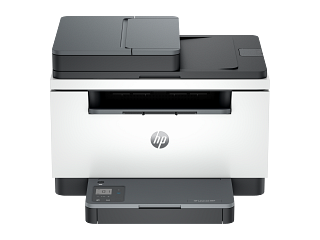
Guidance for HP printers & imaging. Check the feature and control descriptions against your model.
Specifications & model details
8J9K7F: model-specific checks
Start with the source identity
HP 8J9K7F is the exact code in this catalog record. This topic should be evaluated for that code and printers category. The original source record is linked below; unrecorded settings, dates and compatibility remain unknown.
Use the rated cord and outlet, keep adapters ventilated, and account for printer warm-up loads.
Owner guide: Electrical requirements
Category & symptom guidance
Electrical requirements
3 minute read · Shared guidance for printers & imaging
Use the rated power connection
Check the printer label and manual for input voltage and power requirements. Use the supplied cord or a manufacturer-approved replacement. Inspect it for damage and ensure the plug sits firmly in a grounded outlet where required. Do not use a cable simply because its connector fits. Avoid adapters that defeat grounding.
Printers with heaters, fusers, or high-power startup loads can draw more during operation than idle. Follow the manual’s outlet guidance and avoid overloading a shared power strip with a computer, monitor, and printer. Do not open the power supply or fuser area.
Keep adapters and cords ventilated
If the printer uses an external power brick, keep it on a hard, ventilated surface and use the exact approved model. Do not cover it with paper or place it under a rug. Route the cord away from caster wheels, feet, and paper paths. Leave slack for tray access without creating a loop that can snag.
If a plug, cord, or adapter becomes hot, smells, sparks, or has discoloration, stop using it and contact the manufacturer or a qualified electrician. Do not keep printing to see whether the condition repeats.
Separate network power from signal problems
An Ethernet or USB connection carries data, not printer operating power. A printer that appears offline but has a lit panel has a different issue from one with no power indicator. Check the display and power status before changing network settings. For wireless models, router power and printer power are separate checks.
If connecting through a surge protector or UPS, confirm it is rated for the printer’s electrical load. Some laser printers can exceed small backup units during warm-up. Follow the UPS and printer manuals rather than guessing from the idle wattage.
Measure energy without changing the safe setup
Use manufacturer power figures or a properly rated meter for energy comparisons. Record whether the printer is idle, printing, scanning, or warming up, and include any external accessories. Laser and inkjet devices have different operating cycles; comparing a single page from each may not represent monthly use.
Do not place an underrated plug adapter or meter in the power path. If a circuit trips, do not replace the breaker or bypass protection. Ask an electrician to assess the circuit and contact printer support if the unit appears to cause the trip.
Treat fuser and ink charging behavior differently
Laser printers may draw a brief higher load while the fuser warms, so a UPS or small surge protector must be sized for the manufacturer’s guidance rather than idle watts. Inkjet printers may also use power during startup and printhead servicing, but their electrical behavior is different. Do not compare devices using only the power light or rated standby value.
If the printer resets when another device starts, try a suitable dedicated outlet only when it is safe and the manual permits. Do not use an extension cord as a permanent workaround. If a breaker trips or the printer’s cord becomes hot, stop and seek qualified electrical advice.
General background sources
These sources support the shared guide. Exact model specifications and matched family procedures have their own sources above.
Owner guidance by Specs & Parts, drafted with GPT-6 Luna. Sources and scope.
This record does not establish exact electrical requirements values. Use the matching manufacturer document to fill in the missing requirements; the category guidance below helps organize that check.