Guidance for Epson printers & imaging. Check the feature and control descriptions against your model.
Specifications & model details
C11CL62201: model-specific checks
Use this model’s marking technology
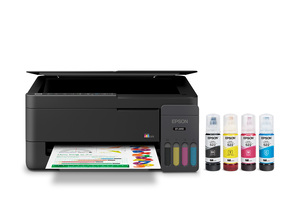
Epson C11CL62201 is recorded as Ink Jet (IJ). For missing colors or broken lines, start with an internal print-quality/nozzle-check page before choosing the manufacturer’s cleaning level. Check the actual cartridge or tank arrangement before buying ink; a marking-technology label does not specify the refill system.
Locate when the sound occurs, inspect paper loading, and stop for grinding, heat, odor, or leakage.
Owner guide: Noise & vibration
Category & symptom guidance
Noise & vibration
3 minute read · Shared guidance for printers & imaging
Identify when the noise occurs
Listen from normal operating distance and note whether the sound occurs at power-on, paper pickup, carriage movement, printing, scanning, or idle. A brief feed or carriage sound differs from a repeated grind, squeal, or clunk. If the printer has a scanner, compare a scan with a print job; the sound may come from different mechanisms.
Record which tray and media were used and whether the sound happens on every sheet. Do not reach inside or move gears while the printer is powered.
Check paper and external vibration
Remove loose paper, envelopes, clips, and objects from around the printer. Confirm the tray is seated and the unit rests on a stable surface. Paper guides set too tightly, a curled sheet, or an overfilled tray can create unusual feed sounds. Follow the manual to remove paper and reload within the marked guides.
Check that the output tray or scanner lid is not vibrating against a wall or shelf. Do not press on the machine while it is running to quiet it; that can interfere with moving parts.
Separate inkjet carriage sound from laser transport
Inkjet printers may move a carriage during startup, alignment, and cleaning; laser printers may feed through rollers and warm a fuser. Their mechanisms and normal sounds differ. Check the manual’s operation description and do not apply a sound diagnosis from another design. A new repeated impact, slipping gear, or grinding that stops a job is not a routine sound to ignore.
If the printer displays a jam or carriage error with the noise, preserve that message and stop repeated attempts. Follow the exact jam-clearing steps without forcing a part.
Stop for heat, odor, or mechanical failure
A sizzling noise, burning smell, smoke, leaking ink, or repeated grinding is a stop-use condition. Turn off the printer and disconnect power if safe. Do not continue printing to see whether the sound clears, and do not open a hot fuser area. Contact support or qualified service.
Record a short clip, the job type, paper source, supply state, and exact model. A service technician can use that evidence to reproduce the noise without repeated operation at home.
Use one sheet to reproduce feed noise
Load one clean sheet in the specified tray and run a short internal test if available. Note whether the sound occurs at pickup, duplex return, or output. If it appears only from one tray, that localizes the paper path. Stop if the sheet catches or the printer reports a jam; do not pull against moving rollers. If the sound occurs during a scanner-only task, compare the scanner carriage with print transport.
Compare a print job with an idle state
If the sound occurs while the printer is idle, no page is feeding and the computer queue is empty, note whether it coincides with a maintenance cycle or network wake. Check the manual for normal startup or cleaning behavior. If it repeats continuously or the printer cannot reach ready, stop and contact support instead of waiting through repeated cycles.
General background sources
These sources support the shared guide. Exact model specifications and matched family procedures have their own sources above.