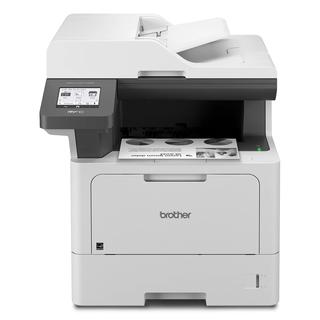
Brother inkjet cleaning is different from laser maintenance
Brother’s cited inkjet instructions use a control-panel cleaning operation and warn that repeated cleaning uses ink. Its laser FAQ instead distinguishes toner and drum consumables. First identify whether the Brother is an inkjet or laser device; do not apply printhead cleaning to a laser printer.
Brother MFC-L5710DN is recorded as Electro-photographic (EP). Separate a device-generated test from a computer job, and match the consumable system before following a replacement or print-quality procedure.
Clean scanner glass and feeder paths separately, and follow distinct inkjet or toner maintenance instructions.
Owner guide: Cleaning & odor
Category & symptom guidance
Cleaning & odor
3 minute read · Shared guidance for printers & imaging
Clean the outside and scanner glass gently
Turn off the printer and follow the manual before cleaning. Use a soft lint-free cloth on the exterior and scanner glass. Do not spray liquid directly on the glass or into openings; moisten the cloth only if the model’s instructions permit it. For a flatbed, remove dust and fingerprints so copies and scans do not reproduce spots. Keep moisture away from the document feeder slot, control panel, and power inlet.
If the scan shows a line, first check whether it appears on the glass or feeder scan path. A mark on the glass may affect flatbed scans; dirt on the narrow ADF strip can create a line only on feeder scans.
Clean the automatic document feeder path
For ADF scan or copy streaks, use the exact manual’s cleaning procedure. Open the feeder access as instructed and clean the glass strip and rollers with the specified cloth or approved liquid. Do not pull on a roller or turn it against resistance. Let surfaces dry before loading originals.
Test with one clean sheet through the feeder and then scan the same page on the flatbed. If the line appears only from the feeder, the feeder glass or path remains suspect. If both paths show it, examine the main flatbed glass and original document.
Inkjet maintenance is a separate procedure
Inkjet printheads and nozzles need model-specific care. Use a printer-generated nozzle check or print-quality diagnostic before cleaning, then follow the manufacturer’s stated sequence and limits. Epson’s model instructions show a nozzle check and cleaning path for specific EcoTank models; cleaning cycles consume ink, so do not run them repeatedly without checking the pattern and waiting interval. Avoid touching the nozzle plate or wiping the printhead unless the exact manual directs it.
A missing color in one test pattern can point to a particular ink path; a blank scan or computer job is a different issue. Save the printed pattern for comparison.
Laser cleaning requires different handling
For a laser printer, use the owner manual to identify accessible cleaning points. Toner is fine powder and the drum/imaging surface can be sensitive to light or contact. Do not use a household vacuum or compressed air unless the manufacturer specifies a safe method. Avoid touching the drum surface or fuser. A repeating mark may correspond to a particular component circumference, but use the model’s official quality guide before diagnosing a part.
If toner spills, follow the manufacturer’s cleanup and safety instructions. Do not wipe toner with a wet cloth unless instructed, because it can smear and spread.
Decide whether the defect is on the original or device
Scan or copy a clean blank sheet and compare it with a known-clean original. A line present on every copy can come from scanner glass or feeder components; a line only in the original may be printed on the source document. For print defects, use a printer-generated quality pattern so the computer and application are removed from the test. Keep each result labeled as “scan,” “copy,” or “print” to prevent treating separate image paths as one fault.
General background sources
These sources support the shared guide. Exact model specifications and matched family procedures have their own sources above.